How to Set Up an Automatic Wallpaper Slideshow on Windows 11 and macOS
Changing your wallpaper by hand gets old. Both Windows and macOS will rotate one for you, and setting it up takes about two minutes.
The setup is the easy part. What most people run into is the part nobody writes about: you point the setting at a folder of wallpapers you like, and the result looks worse than the single image you started with. Images jump from bright to dark, one is sharp and the next is soft, some get cropped strangely.
That is not a settings problem, and no amount of fiddling with the interval fixes it. This guide covers both the setup and the reason — because the second half is what actually decides whether you keep the rotation switched on.

Windows 11
- Right-click anywhere on the desktop and choose Personalize. (Or press Win + I and go to Personalization.)
- Open Background.
- In Personalize your background, switch the dropdown from Picture to Slideshow.
- Click Browse, pick your wallpaper folder, and confirm with Choose this folder.
Then set how often it changes — anywhere from 1 minute to 1 day — and turn on Shuffle so the order is not identical every session. Leave the fit mode on Fill if your images match your screen's aspect ratio.
Three things Windows does not tell you
- The Settings app does not read subfolders. If your wallpapers are sorted into subfolders, the slideshow will find nothing. Keep the images flat in one folder.
- Keep the folder on an internal drive. Point it at a USB stick or an external drive and the slideshow quietly stops the next time you boot without it plugged in.
- Every monitor gets the same folder. Windows has no built-in way to give each display its own set; that needs third-party software.
macOS
On Ventura and later:
- Open System Settings → Wallpaper.
- Under Your Photos, click Add Photo → Choose Folder and select your folder.
- The folder now appears in the list. Tick Auto-Rotate underneath it.
- Set Change picture to an interval, and tick Randomly if you want it shuffled.
macOS goes further than Windows here. Intervals run from every 5 seconds up to daily, and you also get two triggers Windows has no equivalent for: when logging in and when waking from sleep. Those two are also the kindest to your battery — a laptop that redraws the desktop every five minutes is doing avoidable work.
On Monterey and earlier the same thing lives in System Preferences → Desktop & Screen Saver, using the + button at the bottom-left to add a folder.
How the two differ
| Windows 11 | macOS | |
|---|---|---|
| Shortest interval | 1 minute | 5 seconds |
| Login / wake triggers | No | Yes |
| Reads subfolders | No | No |
| Per-monitor sets | Third-party only | Yes, per display |
| Shuffle | Yes | Yes |
Why most rotations end up looking messy
Here is the part the setup guides skip.
One fit setting applies to every image in the folder. You choose Fill, or Fit, or Center — once — and it governs all of them. If your folder mixes a 16:9 image with a 3:2 photo and a phone screenshot, that single setting cannot be right for all three. Something gets cropped through its subject, or letterboxed, or stretched.
Mixed resolutions read as inconsistent quality. A 1920 × 1080 image on a 4K display is being scaled up by 200%. Next to a native 3840 × 2160 image it looks soft, and because they alternate, you notice. A folder of images that are all genuinely 4K never has that problem.
Mixed brightness fights your desktop. Icon labels, the taskbar and the dock are all styled once. A folder that swings from a near-black night scene to a bright snowfield forces you to re-find your icons every time the wallpaper turns over. This is the reason people switch rotation off — not because they disliked any individual image.
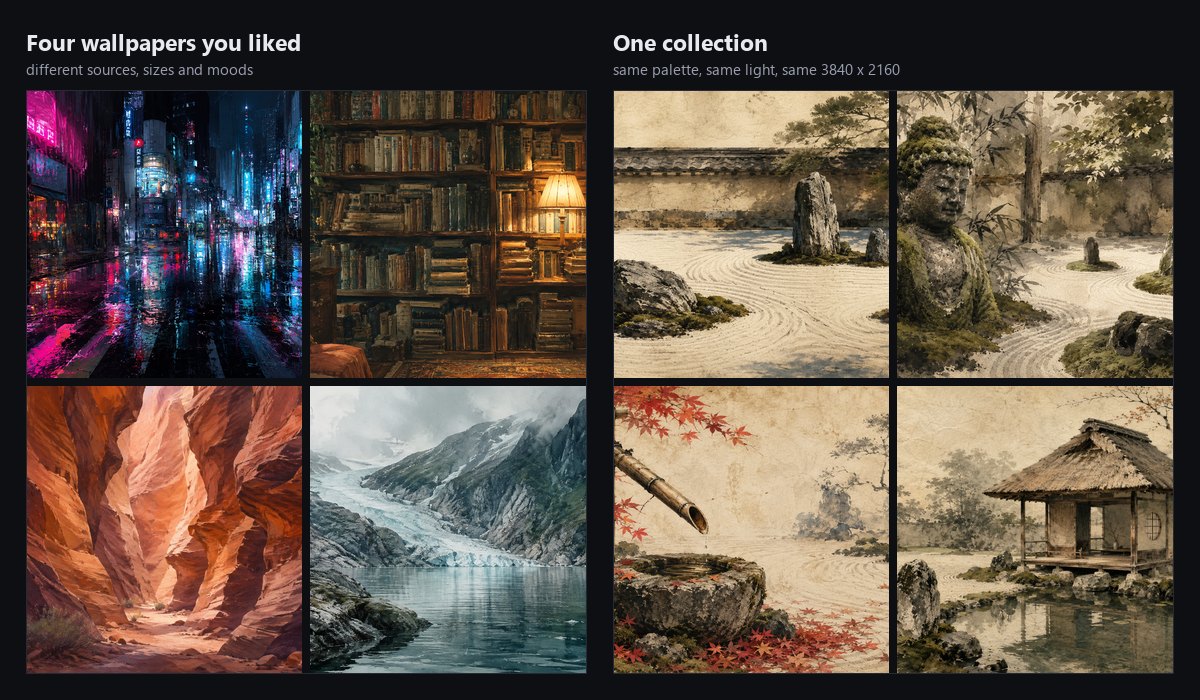
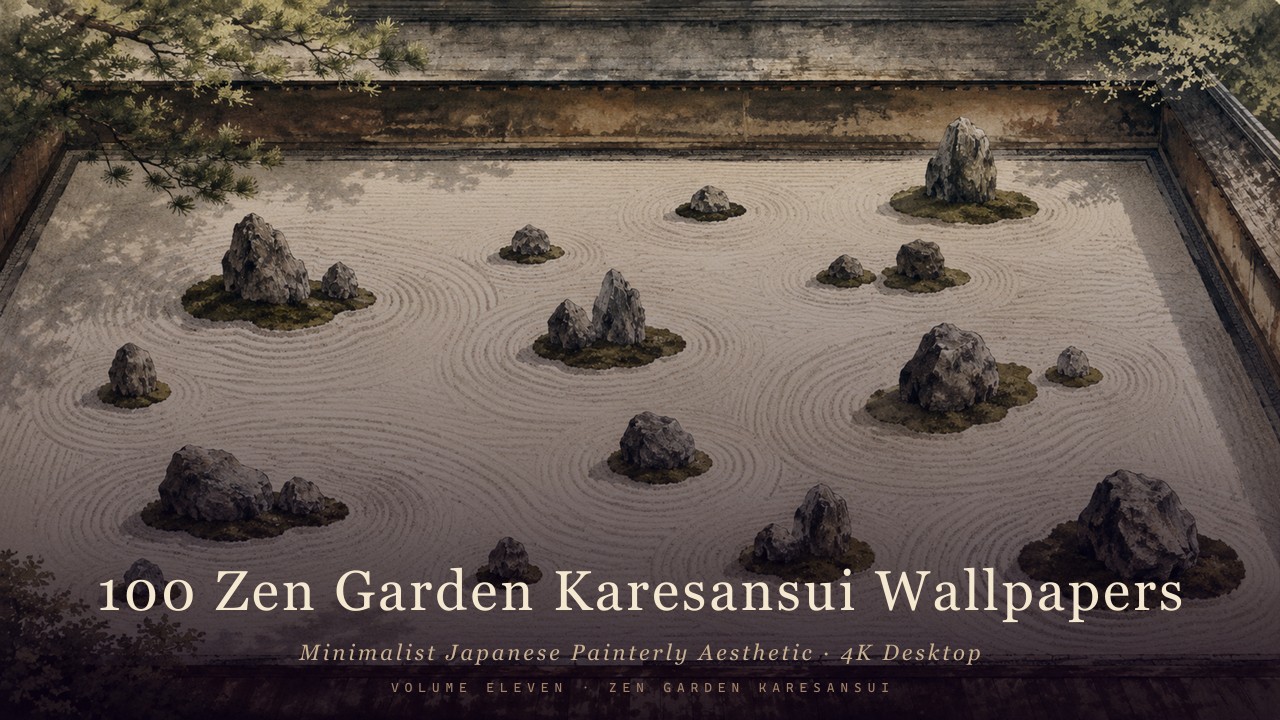
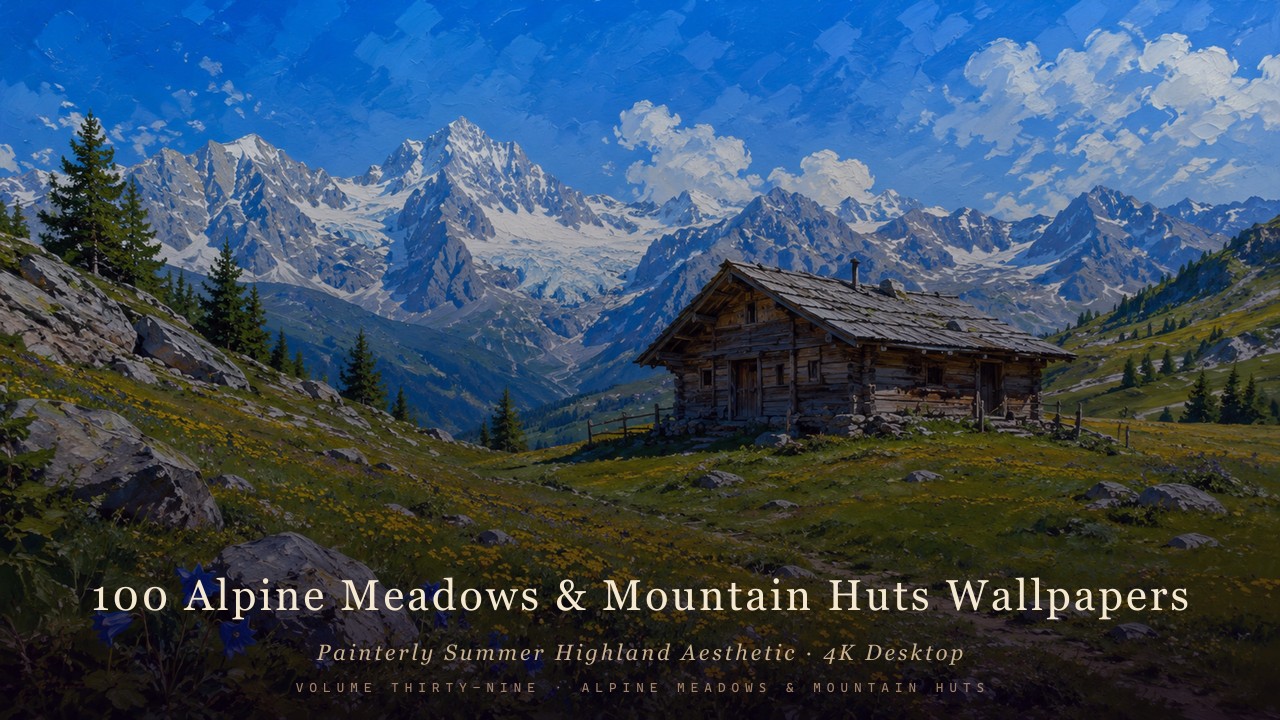
Look at the two halves. Nothing on the left is a bad image. They simply were not made to sit next to each other, and a rotation puts them next to each other every hour, forever.
What a good rotation folder looks like
- One resolution, matching your screen. For a standard 4K panel that is 3840 × 2160. Same aspect ratio throughout, so one fit setting is correct for everything.
- One palette, or at least one brightness range. Consistency here matters more than any individual image.
- Enough images that it does not loop quickly. Changing hourly on a working day, 50 images is roughly a fortnight before you see a repeat.
- Lightly compressed files. At 4K, heavy JPEG compression shows as blocking in skies and gradients — the largest, flattest areas of most wallpapers.
- Calm in the middle. Detail behind your icons is detail you have to read through.
In short
The setup is two minutes on either platform. Turn on shuffle, pick an interval you will not find distracting, keep the folder on an internal drive, and keep it flat.
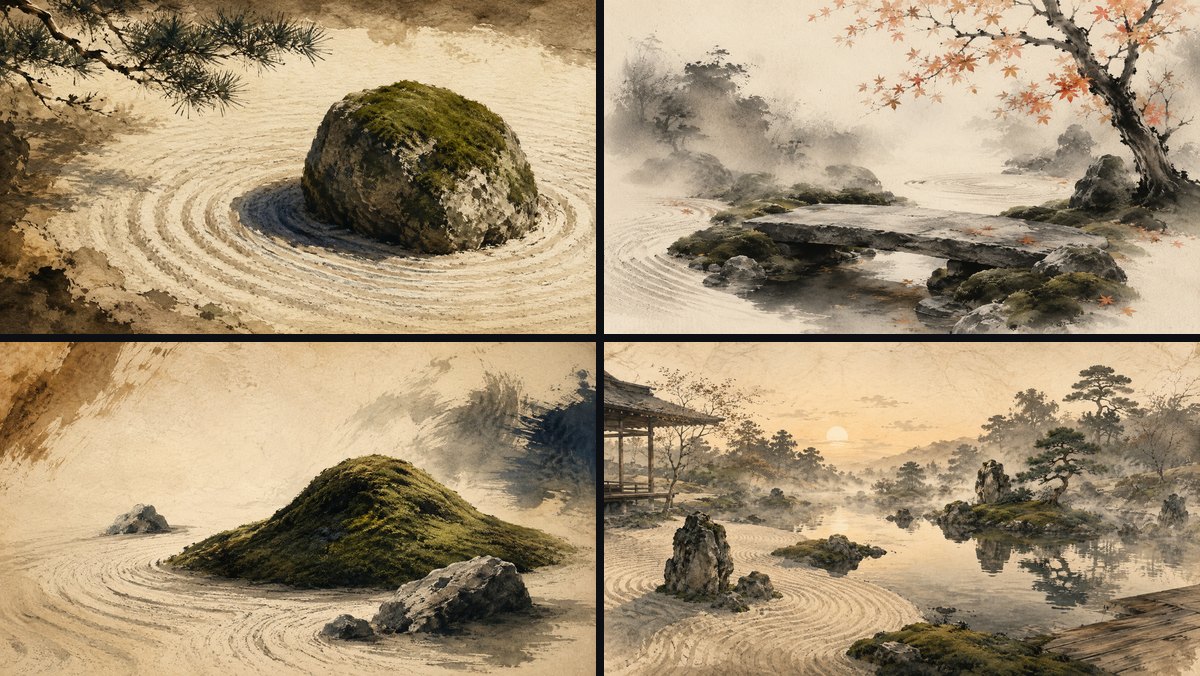
Everything after that depends on what you put in the folder. A rotation is only as coherent as its worst mismatch, which is why a single curated collection tends to beat a folder of individually great images pulled from a dozen places.
Every collection here is built as one set: 100 wallpapers, all 3840 × 2160, one palette and one quality of light across the whole thing. Drop the folder in and the rotation just works.


Created with AI-assisted painterly rendering, then curated, upscaled and finished by hand.