Why Your Wallpaper Looks Blurry or Stretched (and How to Fix It)
You found a wallpaper you liked, set it, and it looks worse on your screen than it did in the browser. Soft, or subtly wide, or cropped through the best part.
There are four common causes. They are listed here roughly in order of how often they turn out to be the culprit, so work down the list rather than changing five settings at once.
1. The image is smaller than your screen
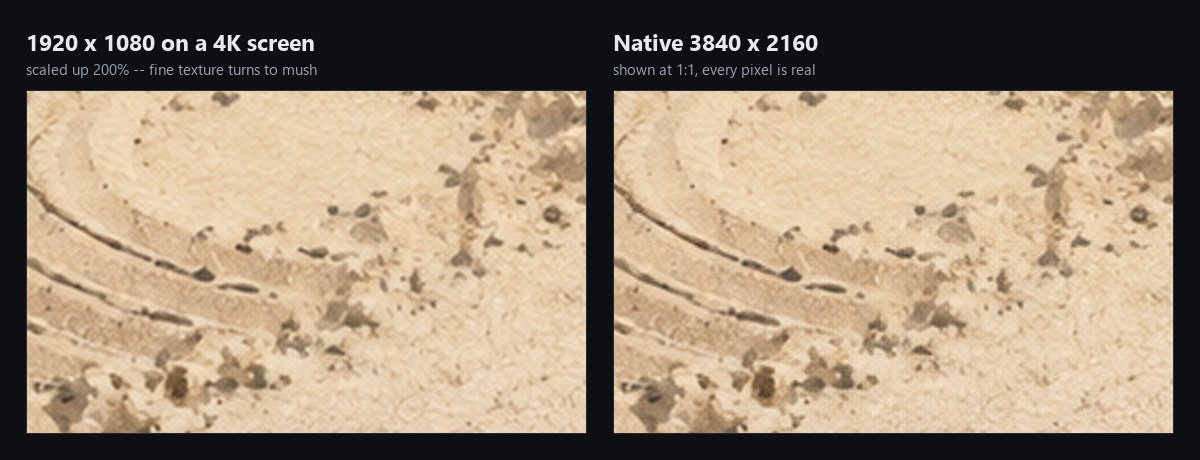
This is the most common cause by a wide margin. A 1920 × 1080 image on a 3840 × 2160 display is being scaled up 200% — every real pixel is painted across four. No setting recovers detail that was never in the file.
It is easy to miss because the same image looks perfect in a browser tab at a quarter of the size. Full-screen is where it falls apart.
Fix: use an image at least as large as your screen. Check your resolution first — Windows: Settings → System → Display. macOS: System Settings → Displays. Then only download wallpapers at or above that size.
2. The aspect ratio does not match
Resolution is not the same as shape. A 3000 × 2000 photo is 3:2. Your monitor is almost certainly 16:9. Set that image to Fill and the operating system will crop the top and bottom away, or — depending on the mode — widen it to fit.
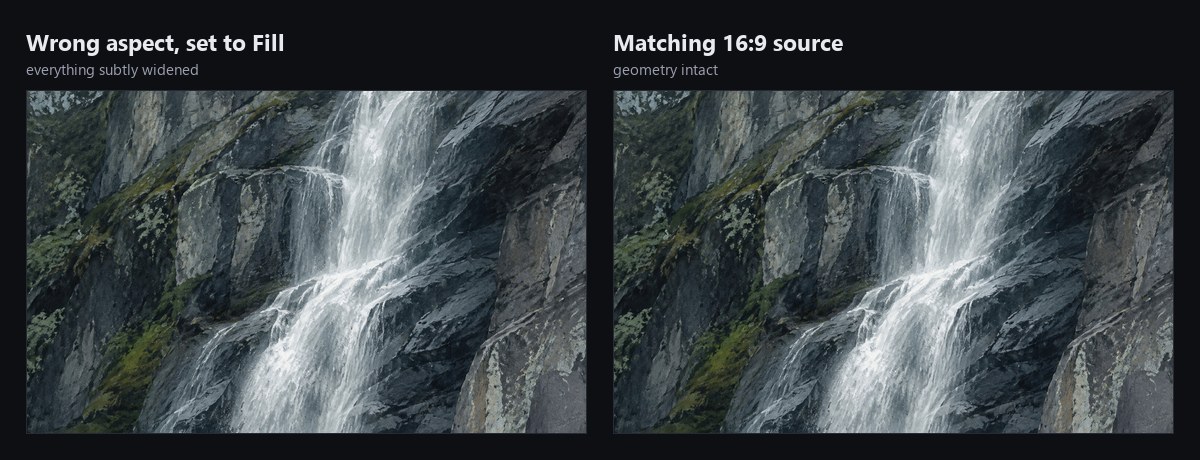
Stretching is harder to spot than blur because nothing looks broken — the picture is simply a little wider than it should be. It is most visible on anything you know the shape of: circles, faces, wheels.
Fix: match the source to the screen shape. For a normal 4K monitor that means a 16:9 image, ideally exactly 3840 × 2160. If you must use a mismatched image, choose Fit over Fill: you will get bars at the edges but correct geometry.
3. Display scaling is doing something odd
If you have set your display to a non-native resolution to make text bigger, everything on screen is being resampled — the wallpaper included. This is the wrong lever.
Fix: put the resolution back to native, then increase the scale instead:
- Windows: Settings → System → Display → Scale, and pick the value marked "Recommended".
- macOS: System Settings → Displays, and choose one of the "Looks like" options rather than a raw lower resolution.
Also worth a look: your GPU control panel and the monitor's own menu can each apply their own scaling. Two of them fighting produces softness that no amount of OS tweaking fixes.
4. The file itself is over-compressed
A heavily compressed JPEG looks fine at thumbnail size and falls apart at 4K. The damage shows up first in large flat areas — skies, gradients, still water — as faint blocks or banding. These are precisely the areas most wallpapers are made of.
Fix: there is no repair for this; compression discards data permanently. Start from a better file. As a rough guide, a good 4K wallpaper JPEG is usually somewhere between 800 KB and 3 MB. A 4K image that is 150 KB has had a lot thrown away.
A note on multiple monitors
If your displays run at different resolutions, the system may hand the same image to both — which means one of them is getting a scaled version. If one screen always looks softer than the other, that is usually why. macOS lets you set wallpapers per display; on Windows it takes third-party software.
Quick checklist
- Image at least as large as your screen — for 4K, 3840 × 2160.
- Same aspect ratio as the screen — 16:9 for most monitors.
- Display at native resolution, with scaling (not resolution) used for readability.
- One scaler doing the work, not OS plus GPU plus monitor.
- A file large enough not to be visibly compressed.
Every collection here ships at exactly 3840 × 2160, 16:9, exported without aggressive compression — which removes the first, second and fourth items from that list before you start.

Next: setting up an automatic wallpaper rotation →
Created with AI-assisted painterly rendering, then curated, upscaled and finished by hand.